Best Invoicing Software for Contractors (2026)
The job’s done, the van’s loaded, and the invoice is still a note on your phone. Any field service tool can send that invoice. What separates them is what happens next: whether the payment posts itself, whether QuickBooks stays in sync without you re-typing anything, and how much of the total the card processor keeps before the money reaches your bank. That last one is the easiest to ignore and it adds up fast.
Jobber has the cleanest, cheapest invoicing stack for solo operators and small teams: batch invoicing, built-in progress billing, and the lowest entry price of the three. Housecall Pro matches it on features, auto-attaches a payment link to every invoice, and is the only one of the three that publishes its card rates in full — but it gates QuickBooks sync above its entry plan. ServiceTitan is the pick once you're billing large commercial jobs in milestones (Applications for Payment) or running automated membership billing at scale.
The 30-second version
Jobber is your pick if…
You want simple, fast invoicing: batch-create invoices for a day's jobs in a few clicks, bill deposits or milestones with progress invoicing, and start on the cheapest entry plan in this category.
Housecall Pro is your pick if…
You want every invoice to arrive with a payment link already attached, cards saved on file for repeat customers, and don't mind paying more to get it.
- Billing large commercial jobs in milestones, or running automated recurring membership billing across many locations? → ServiceTitan.
- Running a cleaning or maid service? → see our ZenMaid review. It handles invoicing fine but QuickBooks sync is still Zapier-only, not native.
What each one costs
Jobber: Core $49/mo ($29/mo billed annually), Connect $139/mo ($99 annual), Grow $199/mo ($149 annual), Plus $499/mo ($399 annual), +$29/mo per extra user. 14-day trial on the Grow plan, no card required. Full breakdown: Jobber pricing.
Housecall Pro: Basic $59/mo (annual; ~$79 monthly), Essentials $149/mo (annual; ~$189 monthly, +$100/mo per extra user), MAX $299/mo (annual; ~$329 monthly, +$75/mo per extra user). 14-day trial. Full breakdown: Housecall Pro pricing.
ServiceTitan: quote-based, priced per technician, sold through a demo, no public number, and payment-processing rates aren’t published either. See our ServiceTitan review for the full pricing reality.
How each one bills
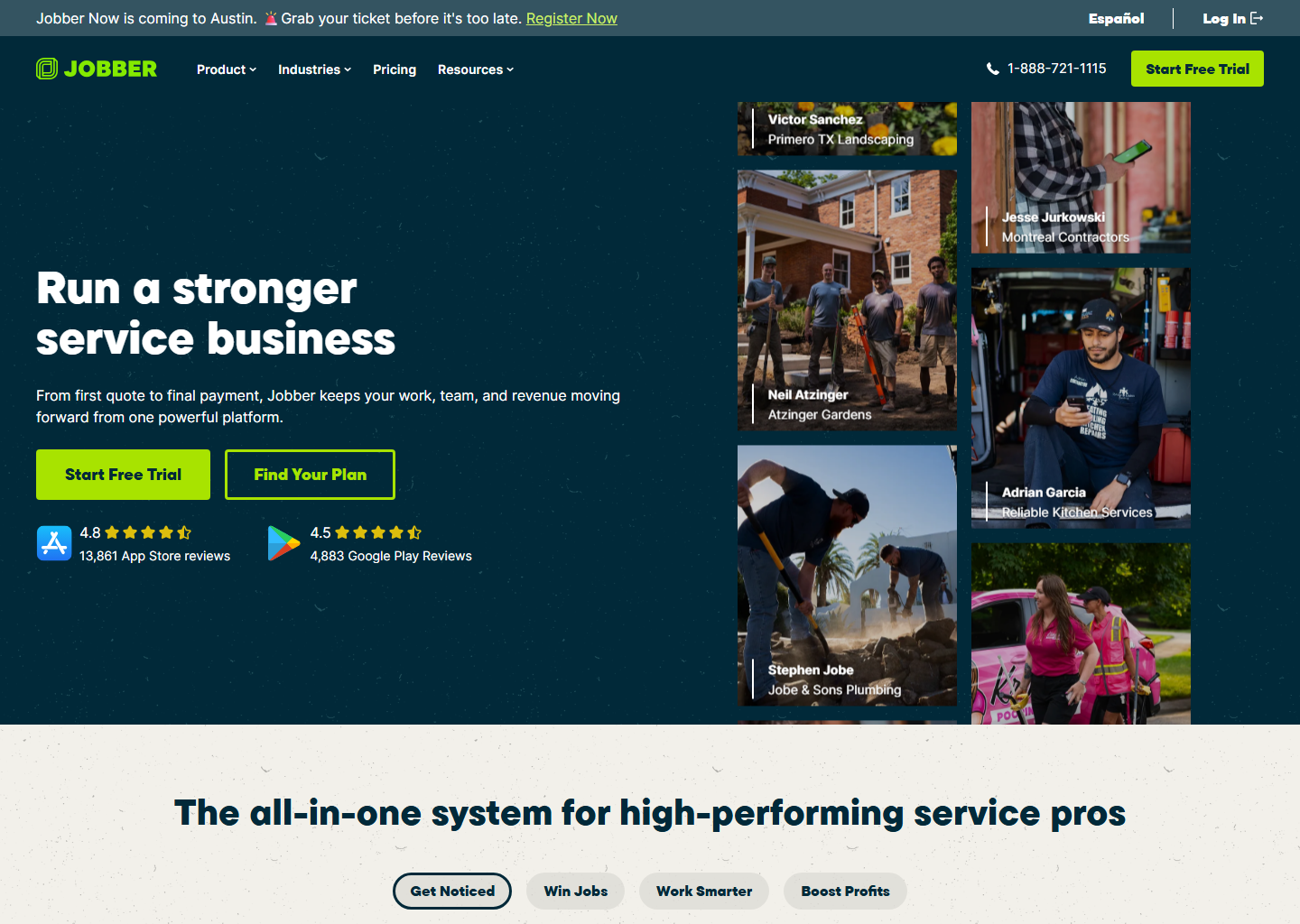
Jobber. Batch invoicing creates one invoice per client in a few clicks. If a client has more than one job, they’re combined into a single invoice, unless different job sites carry different tax rates, in which case Jobber splits them automatically. Progress invoicing lets you set a payment schedule at the quote or job stage, either a simple deposit or a full milestone schedule, instead of billing the whole job at once. Recurring jobs can auto-invoice per visit or at a fixed price per billing period, and automated reminders chase the unpaid ones. Clients pay through the online Client Hub with card, ACH, Apple Pay, or Google Pay. Card processing is where Jobber gets vaguer than its competitor: its help centre says your rate is determined by the plan you’re on, and the figure you actually pay is shown inside your account. What it publishes for everyone is the card-present side — Tap to Pay at 2.7% plus 30 cents on every plan, and 0.2% off your rate if you take payment on the physical card reader — plus ACH at 1% and another 1% if you want the payout instantly. The one catch: QuickBooks Online sync is available on Connect and Grow plans only, not Core, and the sync runs one-way (Jobber → QuickBooks), so make your edits in Jobber or they’ll get overwritten.

Housecall Pro. Every invoice goes out with a payment link already attached, and cards can be saved on file to speed up repeat billing. Progress Invoicing bills in stages, by percentage or fixed amount, with each partial invoice carrying its own due terms. Auto Invoicing handles recurring billing, with one real limitation: it doesn’t work for progress invoices, which have to be sent manually. Batch Invoicing lets you select multiple invoices, across one customer or several, and send them (or collect payment on them) all at once. Card processing starts at 2.59% and runs up to 3.49% depending on the method, with ACH at 1%, and the whole list is published in the help centre method by method: 2.59% swiped, tapped or chipped, 2.99% when the customer pays online, 3.49% keyed in, scanned, saved on file, or on Amex and commercial cards. QuickBooks sync (one-way, from Housecall Pro to QuickBooks, triggered when a job is marked Finished, Sent, or Paid) isn’t available on the entry Basic plan; you need Essentials or MAX.
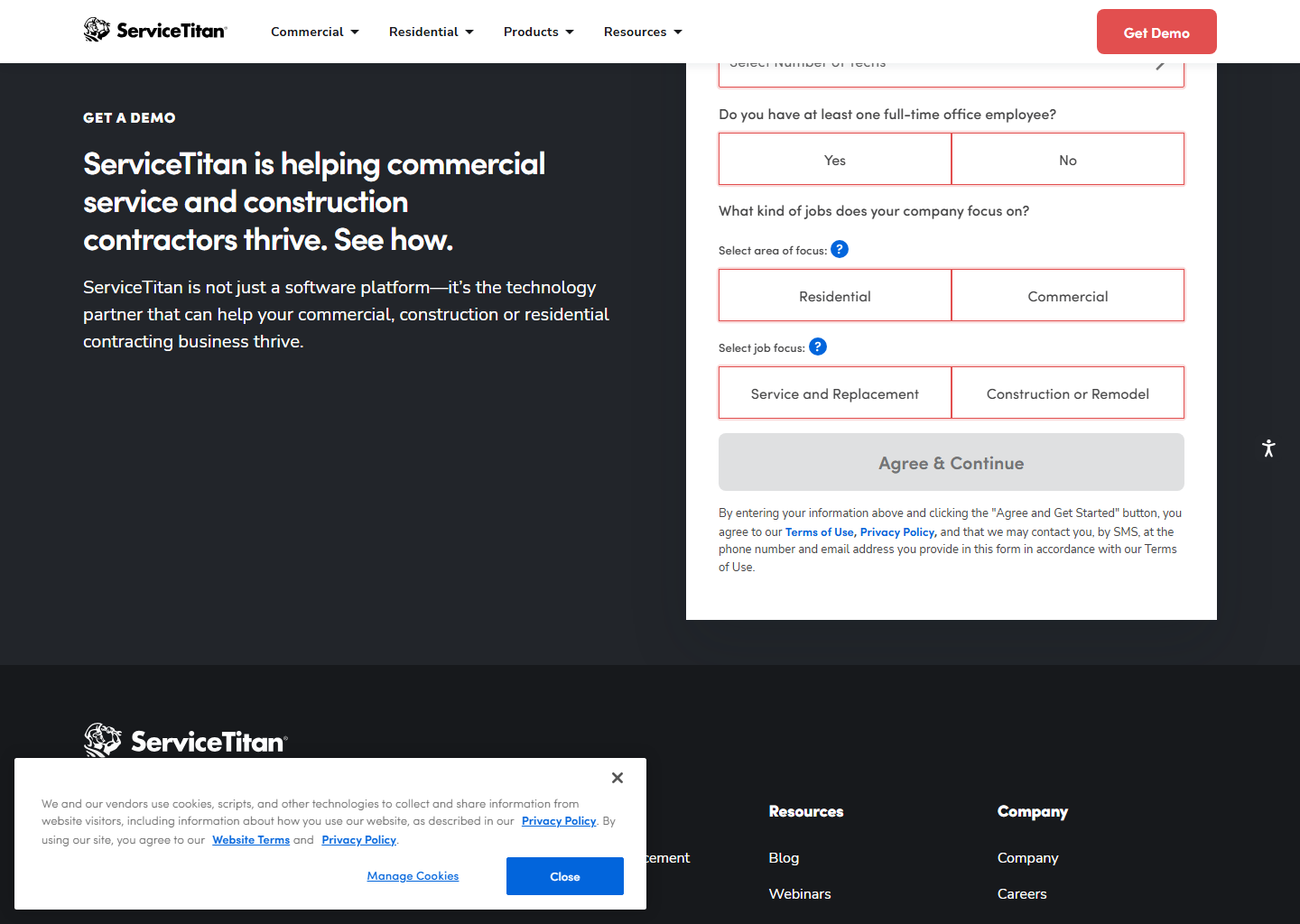
ServiceTitan. This is where invoicing stops looking like a small-business tool. Progress billing ties invoices to Applications for Payment and Continuation Sheets, the same milestone-billing workflow used on larger commercial and construction jobs, so you invoice for work completed and materials used as a project moves forward, not all at once. Recurring billing for memberships and service agreements runs on scheduled “billing runs” that generate and batch invoices automatically off configurable billing templates. Payment options cover card, ACH, check, and Tap to Pay on Mobile, with payment links embeddable directly in invoice emails and PCI-compliant tokenized storage for saved payment methods. None of the processing rates are published, and like the rest of ServiceTitan’s pricing, that gets negotiated as part of your platform contract.
What I like, what to watch
What I like about Jobber
- Batch invoicing and progress invoicing both built in, no add-on
- ACH at 1%, which undercuts any card rate on either platform
- Lowest entry price of the three
What to watch with Jobber
- QuickBooks Online sync needs Connect or Grow, not Core
- Sync is one-way; edits must be made in Jobber
- Your standard card rate isn't on the public site: it depends on your plan and shows inside the account
What I like about Housecall Pro
- Payment link auto-attached to every invoice, no extra step
- Batch invoicing works across multiple customers at once
- Cards on file speed up repeat billing
What to watch with Housecall Pro
- Auto Invoicing doesn't cover progress invoices, so those go out by hand
- QuickBooks sync locked out of the entry Basic plan
- Processing runs up to 3.49% on keyed, saved, Amex and commercial cards
What I like about ServiceTitan
- Real progress billing built for milestone-based commercial jobs
- Automated recurring billing runs for memberships and service agreements
What to watch with ServiceTitan
- No public pricing or processing rates: demo and quote required
- Built for volume; overkill for a small residential-only operation
Who should pick which
- Solo operator or small crew invoicing straightforward jobs: Jobber. Batch and progress invoicing come standard, and the entry plan is the cheapest of the three.
- Taking most of your money on a card in person, and want to know the rate before you sign: Housecall Pro. Its 2.59% card-present rate is published, and sits below the 2.7% plus 30 cents Jobber publishes for Tap to Pay.
- Want every invoice to feel like a one-tap checkout for the customer: Housecall Pro. The auto-attached payment link and saved cards do the work.
- Billing big commercial or construction jobs in stages: ServiceTitan. Its progress billing is purpose-built for Applications for Payment, not a bolt-on.
- Running memberships or service agreements that bill on autopilot: ServiceTitan’s billing runs handle it at scale; Jobber’s recurring jobs cover it at small-business scale.
Quick questions people always ask
Which of these actually lets me bill in stages instead of all at once? Jobber and Housecall Pro both have progress invoicing now. Jobber ties it to the quote or job’s payment schedule; Housecall Pro splits by percentage or fixed amount. ServiceTitan’s version is built for larger, milestone-based commercial billing (Applications for Payment), not quick job-site deposits.
Does the QuickBooks integration sync both ways? No, for either Jobber or Housecall Pro. Both sync one-way, from the field service tool into QuickBooks Online. Make your edits in Jobber or Housecall Pro, not in QuickBooks, or they’ll get overwritten.
What do card payments cost me on each one? Less comparably than every table on the internet suggests, because the two vendors index the fee on different things. Housecall Pro indexes it on how the card is taken and publishes the whole list: 2.59% swiped or tapped, 2.99% paid online by the customer, 3.49% keyed, saved or on Amex, 1% for ACH. Jobber indexes it on which plan you’re on, and that figure is shown inside your account rather than on the site; what it publishes openly is Tap to Pay at 2.7% plus 30 cents, 0.2% off with the card reader, and 1% for ACH. On card-present work the published numbers favour Housecall Pro. ServiceTitan doesn’t publish a rate at all. It’s part of your negotiated platform quote.
Do I need a higher plan just to get QuickBooks sync? Yes, on both platforms. Jobber requires Connect or Grow (not Core); Housecall Pro requires Essentials or MAX (not Basic). That plan jump costs $70–$110/mo depending on platform and billing period. We work through whether the QuickBooks upgrade actually pays for itself, including when hand-entering invoices is still the cheaper answer.
Bottom line
For most contractors, Jobber is the easiest invoicing setup to justify: batch invoicing, progress billing, and the cheapest entry plan, all without upgrading past the mid-tier plan for QuickBooks sync. Housecall Pro earns its higher price if you want every invoice to double as an instant checkout link, or if you want the card rate in writing before you sign rather than after. Reach for ServiceTitan only once you’re billing real commercial projects in milestones or running membership billing at a scale that needs full automation. All three offer a trial or demo. Run a real invoice through one before you commit a plan tier to it.
More context: best field service management software · Jobber pricing · Housecall Pro pricing · best scheduling software for home service businesses.
Pricing verified on the vendors’ own sites on 29 July 2026. Some links are affiliate links — see our affiliate disclosure. Screenshots are from the vendors’ official websites and belong to their respective owners.